Working with views
View tabs, view settings, personal versus shared views, and what every control in the settings panel does.
Views are the tabs along the top of a database. Each one is a saved lens over the same records — its own layout, filters, sorts, grouping, visible fields, and formatting. Switching tabs never changes data; it changes what you’re looking at.
The tab row
-
Click a tab to switch to it.
-
Double-click a tab to rename it.
-
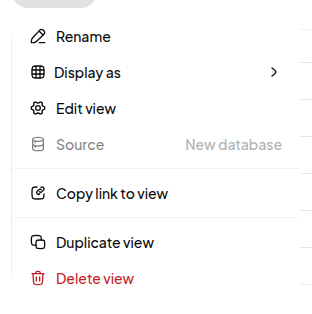
Right-click a tab (or click the active one) for: rename, change layout, duplicate, copy link, and delete.
-
+at the end of the row adds a view. -
When there are more tabs than fit, the row scrolls, and a chevron next to the
+lists every view so you can jump straight to one. -
New creates a record. The gear opens view settings.

View settings
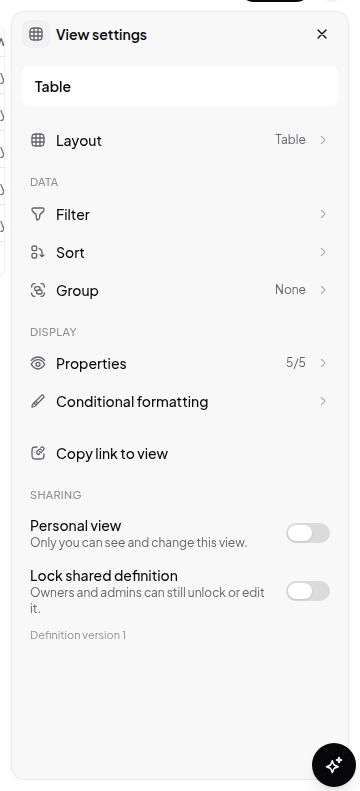
Click the gear icon to the right of the tabs.
Data
| Control | What it does |
|---|---|
| Filter | Which records appear. See Filtering records |
| Sort | What order they appear in. See Sorting records |
| Group | Split into sections by a field. See Grouping records |
Display
| Control | What it does |
|---|---|
| Properties | Which fields are visible in this view, and in what order. Hiding here is per-view and reversible — it is not deleting the field |
| Conditional formatting | Style records that match a rule — bold, italic, colour — either one property or the whole record |
Layout-specific panels appear too: Dates on calendars and timelines, Timescale and dependency lines on timelines, axis/style/range panels on charts, and week-start preferences where dates are drawn.
Personal versus shared views
When adding a view, the menu offers Personal — only visible to you.
- Shared views are part of the database. Everyone who can see the database sees the tab, and your filter changes change it for them too.
- Personal views are yours alone, marked Me on the tab. Nobody else sees the tab or your filters.
Use a personal view for “what’s on my plate today”. Use a shared view for anything the team should agree on, because a well-named shared view becomes shared vocabulary — everyone means the same thing by “Triage”.
Locked views
A view can be locked so its definition can’t be edited by accident. Locked views show a padlock, and the settings gear is disabled for anyone without permission to change it.
Linking to a view
Copy link to view on the tab’s menu gives a URL that opens the database with that exact view active. Views can also be published to the web — see Share with a public link.
Deleting a view
Delete from the tab’s menu. You can’t delete the last remaining view. Deleting a view never deletes records — it only throws away that lens.