Select, status, and their options
Create, rename, recolour, reorder, and delete the options on a select, multi-select, or status field.
Three field types carry options — a fixed list of named, coloured values shared by every record on that field:
- Select — one option per record
- Multi-select — any number per record
- Status — one per record, meant as a lifecycle stage
Options belong to the field, not to a view or a record. Renaming one renames it everywhere.
Adding a status field
-
Add the field
In a table view, click the
+at the right end of the header row and choose Status. -
You already have three options
A new status field arrives with Todo, In progress, and Done. Most people rename these rather than starting from scratch.
Creating an option while filling in a record
The fastest way — you never have to leave the record.
-
Open the field’s value
Click the cell in a table, or the property in an open record.
-
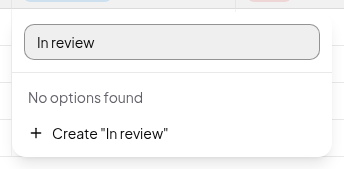
Type the name
The box says Select an option or create one. Type e.g.
In review. -
Create it
Click Create “In review”, or press Enter. The option is added to the field and set on this record in one go.
Managing all the options at once
-
Open the field editor
Click the field’s header, then Edit field.
-
Work through the Options list
Each row has, left to right: a drag handle, a colour swatch, the name (editable in place), and a delete button.
- Rename — click the name, type, press Enter or click away.
- Recolour — click the swatch and pick from the palette.
- Reorder — drag by the handle. Order drives grouping, so this is the order your board columns and grouped sections appear in.
- Delete — the trash icon. Records holding that option lose the value.

-
Add one from here
Type into the box at the bottom of the Options list and press Enter.
Naming rules
- Names must be unique within the field, ignoring case — you can’t have both
Doneanddone. - Names are capped at 80 characters.
- Names starting with a number are fine (
1st pass,2026 goals).
Ordering and grouping
Option order is the single source of truth for section order anywhere the field is grouped:
- Board columns appear in option order.
- Grouped table and list sections appear in option order when the group’s
sort is
manual, which is the default for status fields.
Drag the options into your real lifecycle order — Todo, In progress,
In review, Done — and every board and grouped view lines up automatically.
Troubleshooting
“Status must match one of its configured options.” The value being saved isn’t one of the field’s options. This usually means the option was removed, or renamed, between the record being loaded and saved. Reopen the record and pick from the current list.
The option list looks empty. You’re filtering it — clear the text in the search box at the top of the picker to see every option again.
See also Every field type and Grouping records.