Dashboards
What a dashboard is, how the grid works, and how tabs, controls, and theming turn one into something people use.
A dashboard is a grid of widgets over your workspace data. Where a page is read top to bottom, a dashboard is arranged in two dimensions and is meant to be glanced at — the state of things, not a document about them.
Creating one
-
Add the dashboard
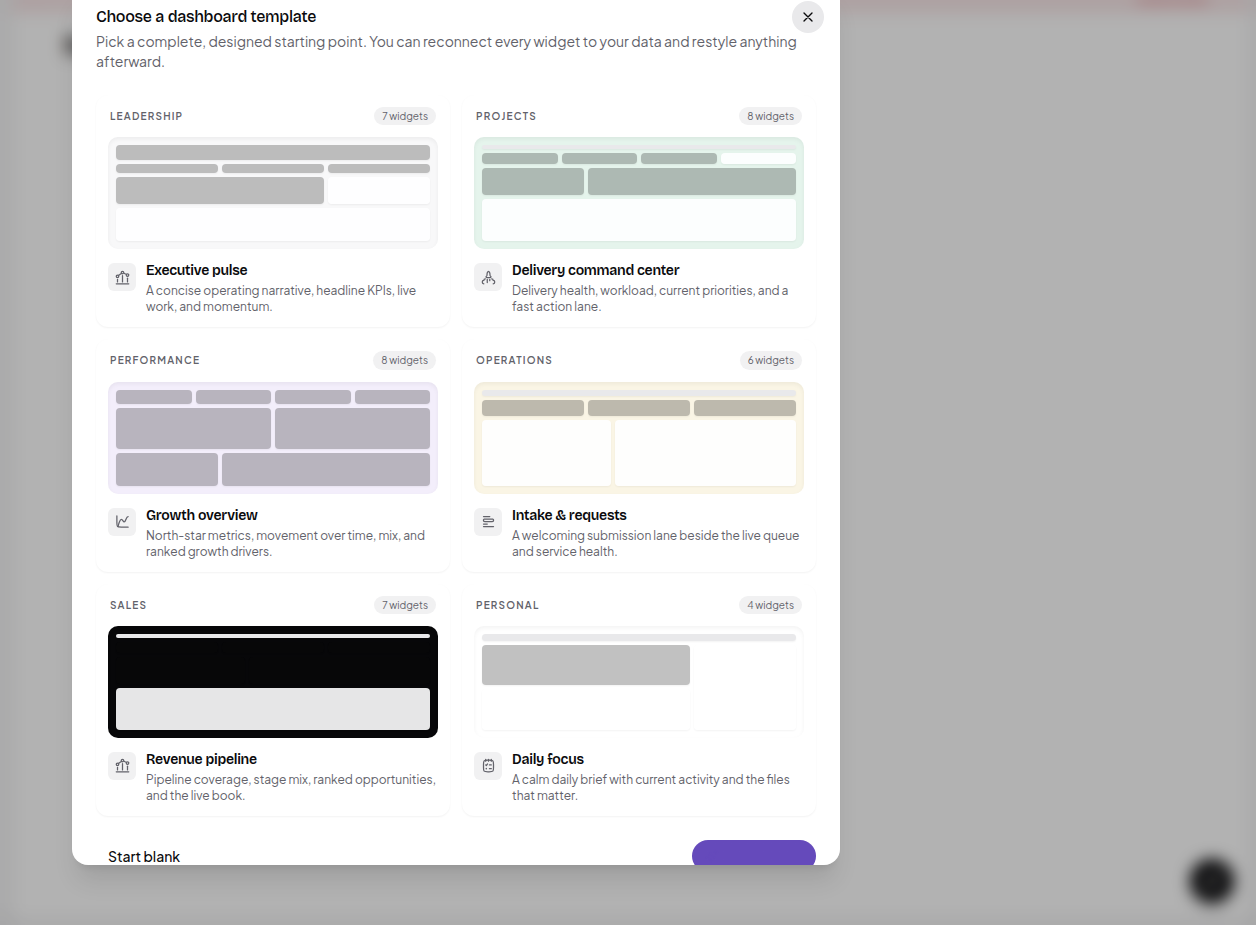
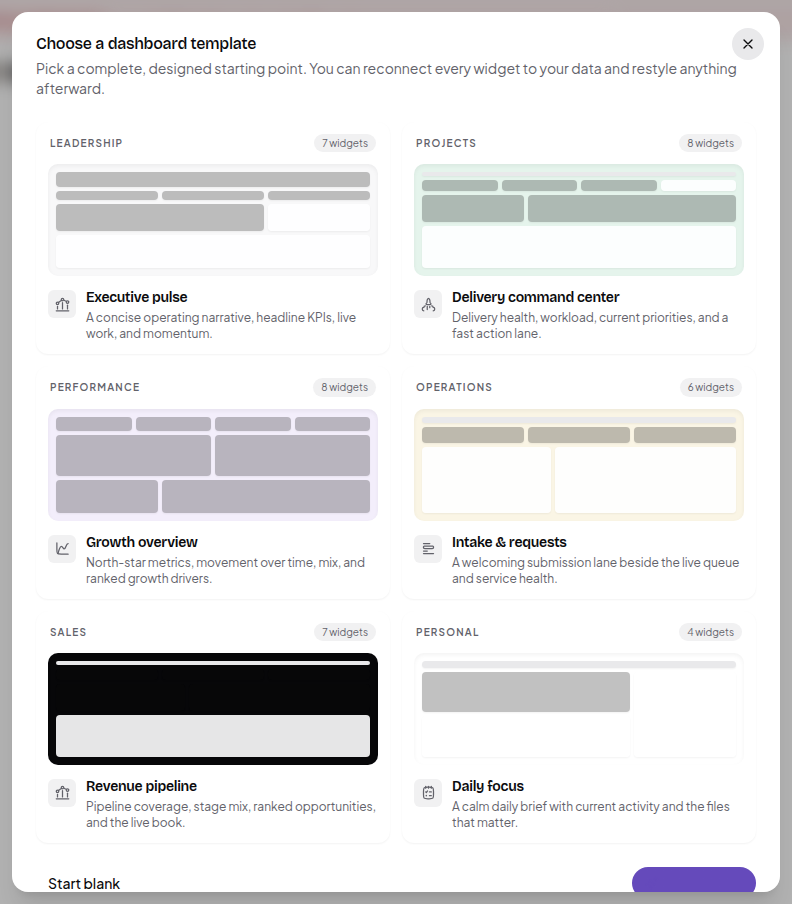
+ next to Workspace → Dashboard. A new board offers a designed starting point, or Start blank.
-
Add widgets
Click Add block (or the + on the grid) to open the widget palette. Every widget is listed in Dashboard widgets.
-
Arrange them
Drag a widget to move it; drag its corner to resize. The grid is 12 columns wide, and widgets snap to it — so two half-width widgets sit side by side.
Tabs
A Tabs widget splits the dashboard into named sections, each holding its own widgets. Use it when one board covers several audiences (“Overview”, “Pipeline”, “Ops”) and you don’t want to scroll past two of them to reach the third.
Controls and parameters
This is what makes a dashboard interactive rather than static.
- A Control widget renders an input — text, select, or date.
- Each control writes to a named parameter on the dashboard.
- Other widgets read that parameter, so changing the control re-filters them.
So one Owner select can drive every chart, table and metric on the board at once. Add a control, name its parameter, then reference that parameter from the widgets that should respond to it.
Live text blocks interpolate parameters too, so a heading can read “Pipeline for Priya, last 30 days” and stay correct as the controls change.
Theming
Dashboards have their own look, set in the design popover:
- Preset —
default,slate,midnight,sand,forest,violet - Accent —
neutral,blue,violet,emerald,amber,rose - Card style —
soft,outline,elevated,flat - Shadow —
none,soft,medium,bold - Spacing —
compact,comfortable,airy - Density —
comfortable,compact - Width —
defaultorfull - Radius, plus explicit background, card, and border colours
Dashboards on pages, pages on dashboards
Dashboard widgets are the same block system pages use, so most widgets can go in a page and most page blocks can go on a dashboard. Pick the surface by how it should be read — see Every surface.
Next: Dashboard widgets, and Actions for making buttons do something.