Grouping records
Split a view into sections by a field's value — how to set it up, which types you can group by, and every grouping option.
Grouping splits a view into sections by the value of one field. Tasks by assignee, contacts by company, anything by status. On a Board view the groups are the columns.
Grouping is saved on the view, alongside filters and sorts. It changes how records are drawn, never the records themselves.
Grouping a view
-
Open view settings
Click the gear icon to the right of the view tabs.
-
Choose Group
Under Data, click Group.
-
Pick the field to group by
Every record with the same value in that field lands in the same section.
-
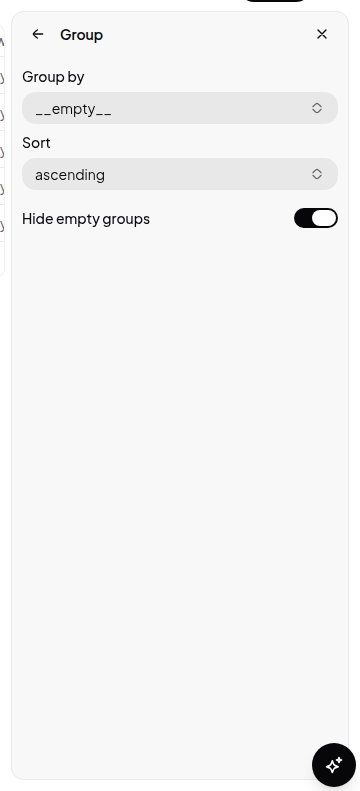
Tune the sections
Set the section order, hide sections you don’t care about, and decide whether empty ones show.
What you can group by
| Field type | Sections |
|---|---|
| Select, Status | One per option, in the option order you set. Empty sections appear even with no records, so you can drag into them |
| Checkbox | Two: Checked and Unchecked |
| Relation | One per linked record — this is how you bucket records by something in another database |
| Date | One per day |
| Number | Numeric buckets; the bucket size is configurable (100 by default) |
| Anything else | One section per distinct formatted value, plus No value |
Options
- Sort —
manual(drag sections into the order you want; the default for Status, so lifecycle order is preserved),ascending, ordescending. - Hide empty groups — on by default everywhere except boards, where empty columns are usually the point.
- Hidden values — hide specific sections without filtering their records out of the view.
- Number bucket size — the width of each numeric band when grouping by a number field.
Grouping by a relation
Because you can group by a Relation field, you can organise records by anything you can model as a record in another database. Make the second database, add a relation field pointing at it, link the records, then group by that field. Each linked record becomes a section, and dragging a record between sections re-links it.
This is the general shape for “collect these records under a thing” — the grouping field does the collecting, and the other database gives that thing a name, dates, an owner, and anything else you want on it.
Grouping and boards
A Board view is grouping, drawn as columns. Its group field must be a Select or Status, and dragging a card to another column writes that field on the record. Everything above about section order and hidden sections applies to board columns too.
See also Sorting records — sorting orders records within each section, grouping decides what the sections are.