Blocks in a page
Every block type a page can hold — text, lists, media, embeds, layout, live data, and interactive blocks.
A page is a stack of blocks. Type / anywhere to open the block menu, or
use the + handle in the left margin. Drag the ⠿ handle to move a block;
drag it beside another block to make columns.
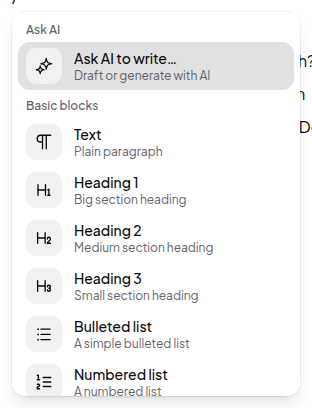
Text
| Block | What it is |
|---|---|
| Paragraph | Plain text — the default |
| Heading 1–6 | Six heading levels |
| Bulleted list | An unordered item |
| Numbered list | An ordered item |
| To-do | A checkbox item you can tick |
| Toggle | A collapsible section that hides its children |
| Quote | A pull quote |
| Callout | A boxed aside for something that must not be missed |
| Code | A syntax-highlighted code block |
| Equation | A rendered maths expression |
| Divider | A horizontal rule |
| Footnote | A numbered note |
Text supports bold, italic, underline, strikethrough, code, and links.
Media and files
| Block | What it is |
|---|---|
| Image | An uploaded or linked image |
| Video | An uploaded or embedded video |
| Audio | An audio clip |
| File | Any uploaded file, shown as a tile |
| Bookmark | A link rendered as a rich preview card |
| Embed | An external page embedded in an iframe |
Layout
| Block | What it is |
|---|---|
| Column list / Column | Side-by-side layout. Created by dragging one block next to another |
| Table | A simple static table — for structured data you’ll filter or sort, use a database instead |
| Table of contents | An auto-generated outline from the page’s headings |
Live data
These pull real workspace data into the page, and stay current.
| Block | What it is |
|---|---|
| Database view | A full table/board/calendar of a database, inline. See Every view type |
| Metric | A single number or small chart computed from a database |
| Insight | A written brief generated over your data |
| Activity feed | Recent activity in the workspace |
| Page link | A link to another page, rendered as a preview |
| Synced page | A live copy of another page’s content — edit either side, both update |
| Form embed | One of your forms, inline. See Collect data with forms |
| Drive embed | Files from a connected drive |
Interactive
| Block | What it is |
|---|---|
| Button | Runs an action when clicked |
| Control | An input — text, select, date — that feeds parameters into other blocks on the surface |
| Live text | Text with values interpolated from data or controls |
| Dashboard tabs | Splits a surface into tabs |
| Repeat | Renders its children once per record in a set |
Moving and nesting
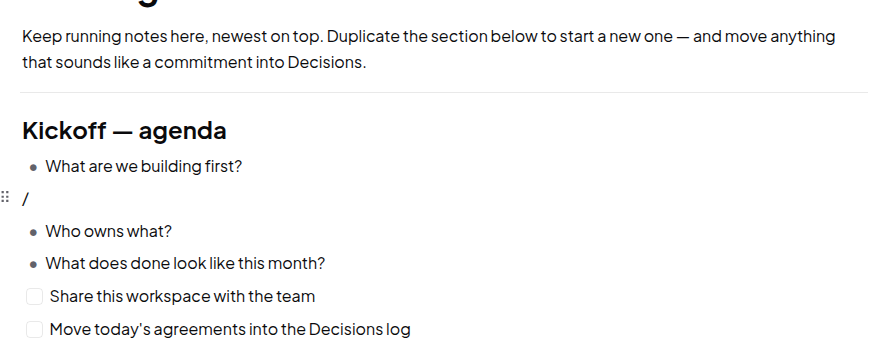
- Drag the ⠿ handle to reorder.
- Drag a block onto another block’s left or right edge to create columns.
- Toggles and columns can contain other blocks; most other blocks cannot nest.
- Select several blocks and drag them as a group.