Every field type
All 25 field types a database column can be, what each one stores, and how each behaves in filters, sorts, and groups.
A database is a set of records; a field is one typed column on every record. The field’s type decides what you can store, how it renders, and which filter operators and grouping options become available.
Adding and changing a field
-
Add a field
In a table view, click the
+at the right end of the header row. Pick a type, give it a label, and it appears on every record.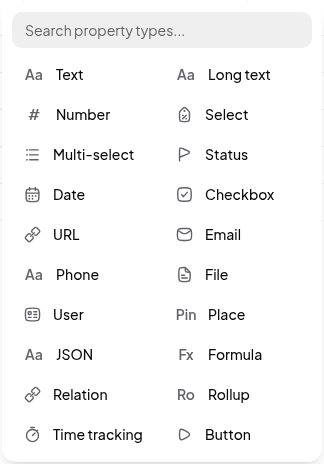
-
Change a field’s type or settings
Click the field’s header, then Edit field. Changing type converts existing values where it can and clears them where it can’t — a
textfield becomingnumberkeeps “42” and drops “about forty”. -
Reorder, hide, or delete
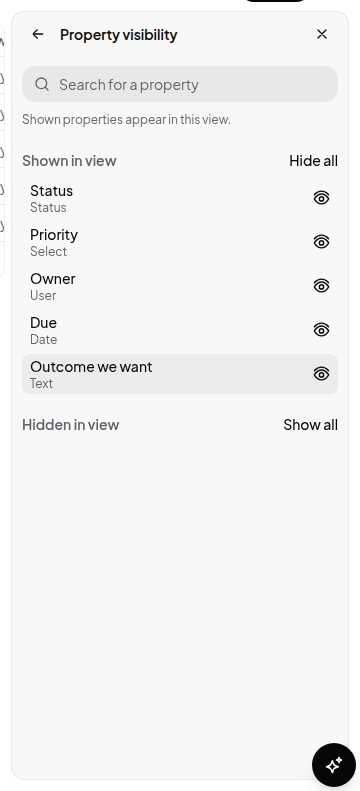
Drag headers to reorder. View settings → Properties controls what’s visible in that view only. Deleting a field removes its data from every record, everywhere.
Basic types
| Type | Stores | Notes |
|---|---|---|
| Text | One line of text | Names, codes, short labels |
| Long text | Multi-line text | Notes and descriptions. For real long-form, use the record’s page body instead — see below |
| Number | A number | Setting: precision, 0–12 decimal places |
| Checkbox | True or false | A single fact, not a workflow — use Status for stages |
| Date | A date, a date-time, or a date range | Ranges have a start and an end; the end must not precede the start |
| URL | A web address | Rendered as a link |
| An email address | Rendered as a mail link | |
| Phone | A phone number | Rendered as a call link |
| Place | A location | |
| JSON | Arbitrary structured data | An escape hatch; prefer real fields you can filter on |
Choice types
These are the only three types that carry options — a fixed list of named, coloured values. Options are shared by every record on the field.
| Type | Stores | Notes |
|---|---|---|
| Select | Exactly one option | |
| Multi-select | Any number of options | |
| Status | Exactly one option, meant as a lifecycle stage | A new status field starts with Todo, In progress, and Done |
Select and Status behave identically for filtering and grouping. Use Status when the values are stages something moves through, and Select when they’re just categories.
See Select, status, and options for creating, renaming, recolouring, and reordering options.
People and files
| Type | Stores | Notes |
|---|---|---|
| User | One or more workspace members | Filter with is against a member; “Owner is me” is a common view filter |
| File | One or more uploaded files |
Automatic types
These fill themselves in. They are never editable, and they are never required.
| Type | Stores |
|---|---|
| Created at | When the record was created |
| Created by | Who created it |
| Updated at | When it last changed |
| Updated by | Who last changed it |
| Unique ID | A stable auto-incrementing identifier |
Computed types
Also not directly editable — their value is derived.
Formula
Runs an expression over the record. Settings:
- Expression — up to 5,000 characters, e.g.
if(prop("done"), "Complete", prop("name")) - Result kind —
text,number,checkbox,date, orjson - Compute mode —
read(evaluated when read) ormaterialized(stored, so it can be filtered and sorted efficiently)
Relation
Links records in this database to records in another one. This is the primitive for any structure that spans two databases.
- Target database — what it points at
- Cardinality —
oneormanyrecords per link - Reciprocal field — optionally create the matching field on the other side, so the link is navigable from both directions
Because a relation’s value is a record, you can group a view by a relation, which is how you get sections of records bucketed by whatever they’re linked to.
Rollup
Aggregates a field on the records reachable through a relation.
- Relation field — which relation to follow
- Target field — which field on the far side to aggregate
- Function — one of:
count,count_values,count_empty,count_unique,percent_empty,percent_not_empty,sum,average,median,range,min,max,earliest,latest,checked,unchecked,percent_checked,unique,show_original - Result kind and compute mode, as for formulas
Interactive types
| Type | Stores | Notes |
|---|---|---|
| Time tracking | Tracked duration | Settings: default mode (stopwatch or countdown) and a completion sound |
| Button | Nothing | Runs an action when clicked. Settings: the action to run, a label, and a variant |
The two layers of a record
Every record has typed fields and a page-like body. They are not the same thing, and picking the wrong one is the most common modelling mistake.
- Fields are for facts you want to filter, sort, group, or calculate on.
- The record body is the page you get when you open a record — the place for the description, the requirements, the meeting notes, the detail.
If you find yourself putting a paragraph into a Long text field, it probably belongs in the record body instead.
What each type can do
| Capability | Types |
|---|---|
| Group a view by it | Select, Status, Checkbox, Relation, Date, Number, and anything else with a formattable value |
| Show on a Calendar or Timeline view | Date (a Calendar view needs at least one date field to exist) |
| Board columns | Select, Status |
| Required | Any editable type. Automatic and computed types can never be required |
For the operators available per type, see Filtering records.